
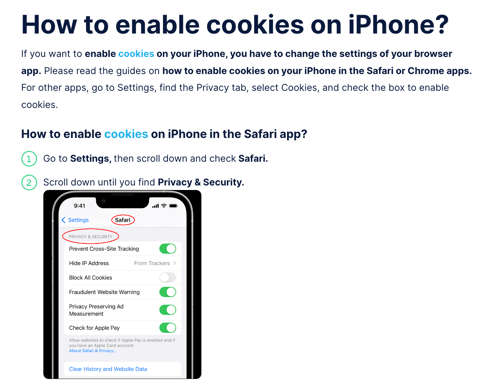

Please restart/refresh the browser.
Enable Cookies in Chrome

How to Enable Cookies on Chrome Browser
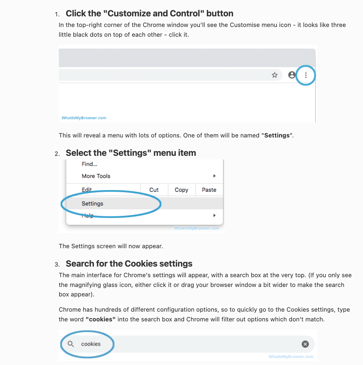

How to enable cookies in Microsoft Edge?
Please read the guides on how to enable cookies in the Edge browser on your computer, phone, or tablet. The first guide explains how to enable cookies in Edge on a computer, while the second one is how to enable cookies in Edge on a phone or tablet.
How to enable cookies in Edge on your computer?
To enable cookies in Edge on a personal computer, perform the following steps:
- On your computer, open the Edge browser.
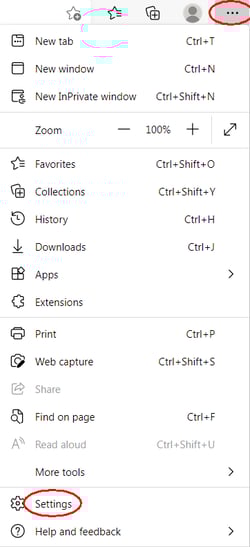
- Click the Menu button, found at the top-right corner of the web page, and then click Settings.
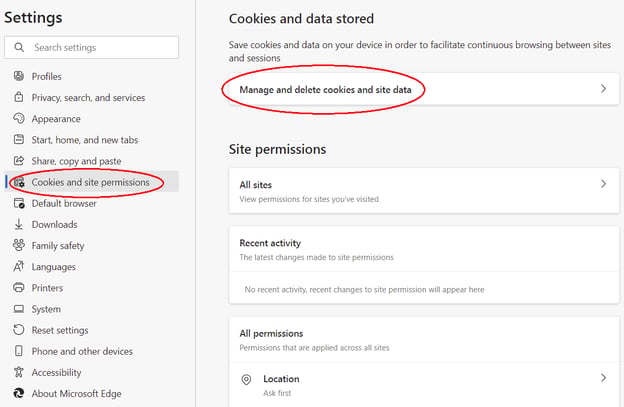
- Click Cookies and site permissions and then Manage and delete cookies and site data.
- Choose the option Allow sites to save and read cookie data. When you allow first-party cookies, you could select to allow or block Third-Party Cookies by enabling or disabling the tab below.
- Restart Edge.
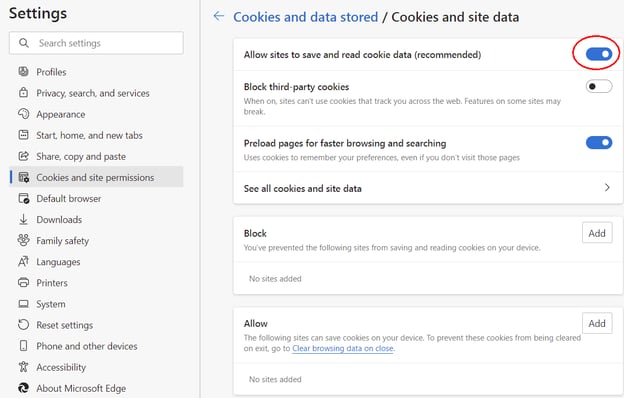
Done, you have enabled cookies in the Edge web browser on your computer.
How to enable cookies in Edge on a phone or tablet?
- On your mobile phone or tablet, open the Edge app.
- Tap the More button in the top-right corner of your Edge browser, marked by three dots.
- Tap Settings.
- Under Privacy & security, go to the tab Cookies.
- To enable cookies, select Don’t block cookies.
Done, you have enabled cookies in the Edge browser on your mobile phone or tablet.